How to use Tesla Paint Shop wraps
Two ways to get a custom wrap onto your touchscreen, the exact file rules Tesla checks, and what to do when a wrap doesn’t show up. Updated for Tesla app 4.59.0.
From your phone with the Tesla app
- Download the PNG to your phone from any design page.
- Open the Tesla app and go to Creations → Wrap.
- Tap Upload, pick the file and give it a name.
- In the car open Toybox → Paint Shop → Wraps. It shows up once the car is online.
Simplified illustration of the app screens.
From a USB drive
- Format the drive as exFAT, FAT32, MS-DOS FAT, ext3 or ext4. NTFS is not read.
- Create a folder named exactly Wraps at the top level of the drive.
- Copy up to 10 PNG files straight into it, not into subfolders.
- Plug the drive into a USB data port in the car, then open Toybox → Paint Shop → Wraps.
Pick it in the car
Open Toybox, tap Paint Shop, then the Wraps tab. Your files appear next to Tesla’s built-in options. Tap one and the car on screen changes right away. Your real paint stays exactly as it is.
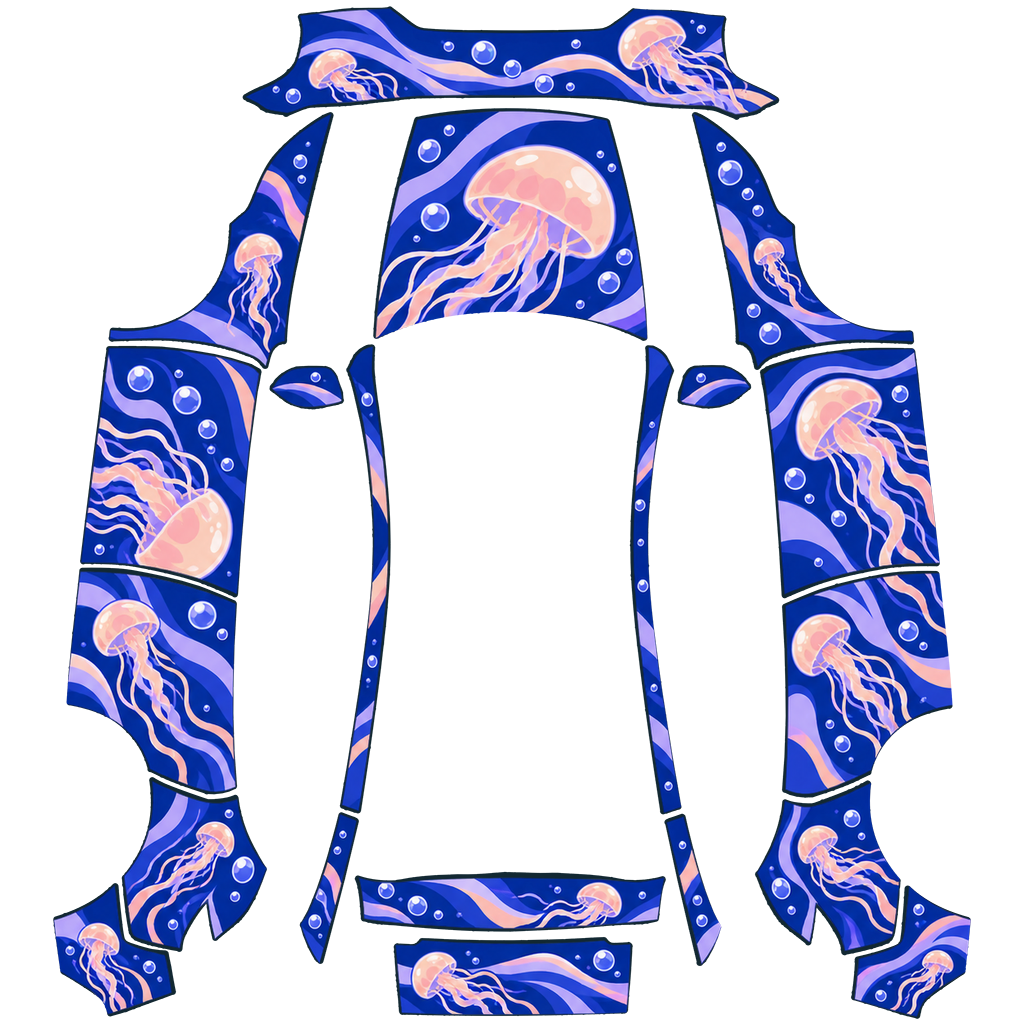
Find a wrap for my car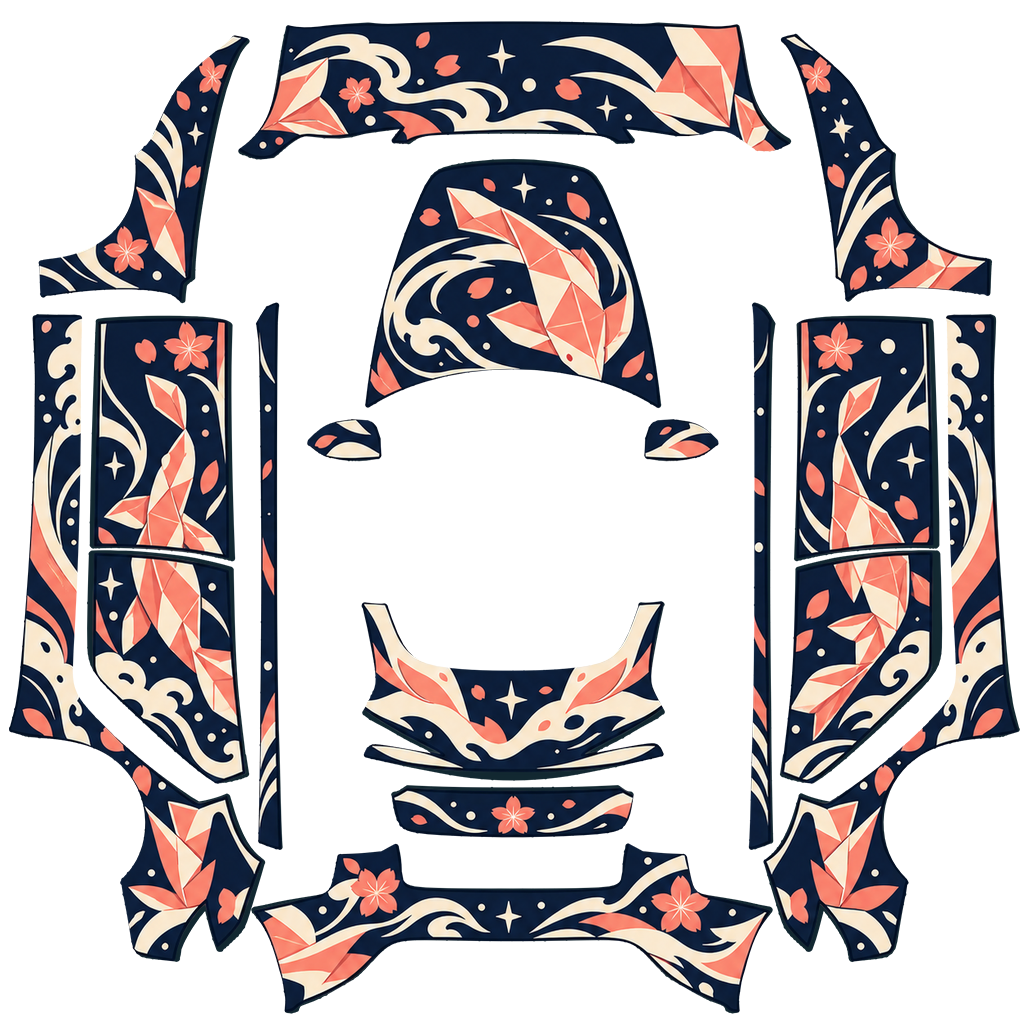

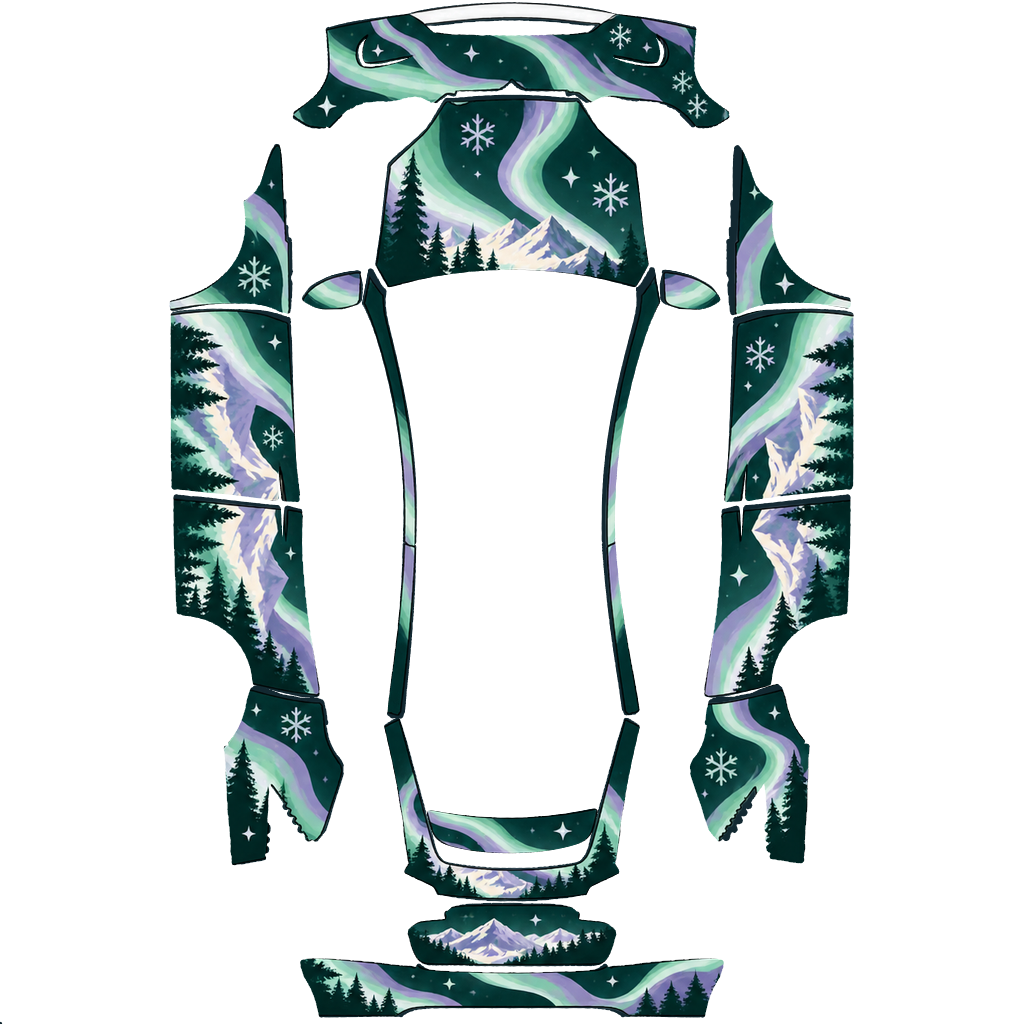
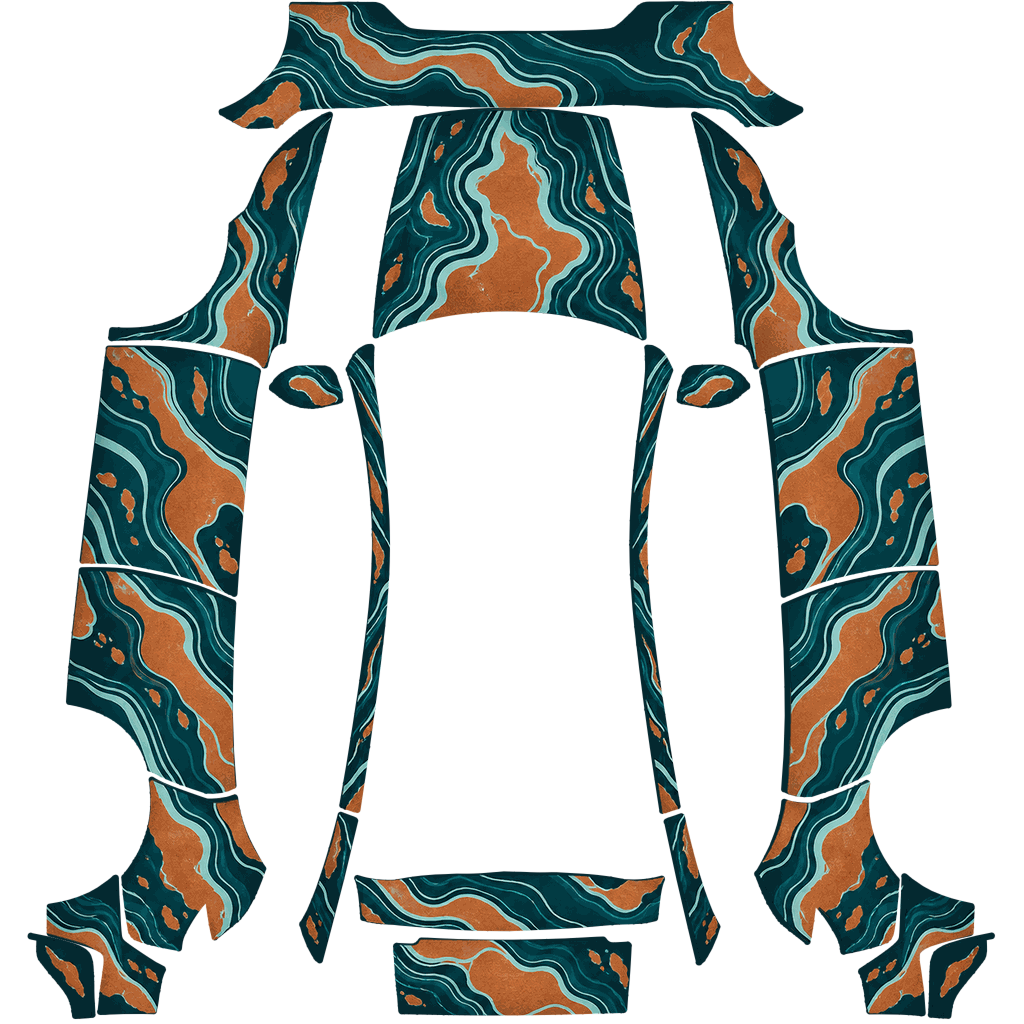
Which template your car uses
Tesla publishes one template per body. A wrap only lines up on the car its template was made for.
| Model | Version | Template | Canvas | |
|---|---|---|---|---|
| Model 3 | 2017–2023 | model3 | 1024 × 1024 | Wraps |
| Model 3 | 2024+ | model3-2024-base | 1024 × 1024 | Wraps |
| Model 3 | 2024+ Performance | model3-2024-performance | 1024 × 1024 | Wraps |
| Model Y | 2020–2024 | modely | 1024 × 1024 | Wraps |
| Model Y | 2025+ Premium | modely-2025-premium | 1024 × 1024 | Wraps |
| Model Y | 2025+ Standard | modely-2025-base | 1024 × 1024 | Wraps |
| Model Y | 2025+ Performance | modely-2025-performance | 1024 × 1024 | Wraps |
| Model Y | Model Y L | modely-l | 1024 × 1024 | Wraps |
| Model S | 2021+ | models-2021 | 1024 × 1024 | Wraps |
| Model S | 2025+ Plaid | models-2025-plaid | 1024 × 1024 | Wraps |
| Model X | 2021+ | modelx-2021 | 1024 × 1024 | Wraps |
| Cybertruck | All years | cybertruck | 1024 × 768 | Wraps |
Wrap not showing up? Check in this order.
Is the PNG under 1 MB?
Paint Shop skips anything bigger without telling you. This catches more wraps than every other check combined.
Quick answers
What is Tesla Paint Shop?
Paint Shop is a Toybox feature in your Tesla that lets you apply custom wraps and colors to the 3D view of your car. A wrap is a PNG image that gets laid over the car model, so you can change how it looks without leaving the driver’s seat.
What file format do wraps use?
PNG only. The image must be square, between 512 and 1024 px on each side, and 1 MB or smaller. Wraps on this site are prepared to match those rules, so they import without resizing.
Which Tesla models are supported?
Model 3 (including Highland and Highland Performance), Model Y (original, Juniper Standard, Premium and Performance, and Long Range), Model S/X 2021+ including Plaid, and Cybertruck.
Is it free?
Yes. Browsing, previewing and downloading gallery wraps is free. Credits are only for generating a custom wrap with AI: $4.99 for 100 credits, $9.99 for 300 credits, or $19.99 for 500 credits. Browsing the gallery, previewing wraps and downloading PNG files need no account, no email and no upload.
How do I import a wrap into my car?
Put the PNG in a folder named Wraps on a USB drive and plug it into your Tesla, or upload it from the Tesla app. The import guide has both methods and a troubleshooting checklist.